- Empty the user's temp folder at %userprofile%\Local Settings\Temp\
- Open Word (or Excel)
- Click the Office button
- Click Word Options (or Excel Options)
- Click Resources
- Click the Diagnose button
- Click through the wizard until it is finished
- Reboot
My views on SharePoint, Virtualization, and other IT ramblings
I'm a SharePoint & Server Systems Administrator for Sears Home Improvement Products, headquartered in sunny Longwood, Florida. My primary functions revolve around SharePoint and Virtualization technologies.
I've been in the IT industry now for about 18 years. For me, IT is more than a job to make a living, more than a career to call my own. It's my passion. I am a self proclaimed geek and have interest in all things technology. I can't imagine being in any other field - I absolutely love what I do.
Enter a name for your new library and click Create. Now, go back to Dashboard Designer and try to deploy your dashboard. Once the Deploy To box pops up, you'll see your newly created Dashboard Library that you can deploy your dashboard to.
Today I ran into an odd problem when trying to publish an InfoPath form to a site collection in MOSS 2007. When publishing the form, I got a fairly nondescript error that told me to check the logs for more info. Well, off to the logs I go where I am surprised to see "Activation could not be completed because the InfoPath Forms Services support feature is not present."
Huh? How is InfoPath not present? All my other forms are working just fine. No problems anywhere else I can see. And it's not like InfoPath is like Excel Services or Project Server that I can just disable/enable in Services on Server in CA. Well, after some looking around on my favorite search engine, I found a great post by bphillips76 that said they were able to resolve the problem by simply deactivating and reactivating the "Office SharePoint Server Enterprise" features at both the site collection and the site level.
So, having exhausted all other options I could come up with on my own, I decided to give this simple trick a try and was plesantly surprised to see it worked. Moments later, I was able to activate my form and I was back in business.
Thanks for the tip, bphillips76!
http://bphillips76.spaces.live.com/blog/cns!F9B548E4C21D6166!371.entry
I recently completed a deployment of Office Communications Server 2007 R2 and in my search for many technical articles, I stumbled across the ability to create custom presence in Office Communicator 2007 R2. (Microsoft TechNet article here) Obviously, for most people, myself included, there isn't a real business need for this so I kind of tucked it away in my "This would be kinda cool to try out some day" pile.
Well, eventually I was looking for a distraction and turned to the pile, finding this little nugget and gave it a try....to no avail. It didn't work! Oh well, stick it back in the pile.... I revisited this occasionally here and there over the next couple months, never able to get it working, never caring about it enough to invest any real amount of time in it. Well, tonight I ran across this article while looking up some security information for OCS that answered why this wasn't working.
In OCS 2007 R2, High Security SIP is enabled by default. (awesome!) so, it expects all transmissions to be secure. Well, had tried having the presence.xml file out on a network share, on my local hard drive, and in a SharePoint document library. None of which are considered secure transmissions. However, just slap an 's' at the end of the http for my SharePoint document library and voila! My custom presence works!
So, moral of the story is, if you want to use custom presence in OCS 2007 R2 and you haven't disabled secure SIP (and hopefully you haven't....) then you have to store the file in an https enabled location. So, something like, https://server.domain.com/folder/presence.xml
Now, I wonder how long it will take before someone notices that my presence is "out of my mind, be back later"...
I was running into this problem sometimes when doing a P2V conversion in Hyper-V. The conversion would get to exactly 40% and fail. Every time. Well, after a little searching around, it turned out to be a common problem with the VSS writer on the source machine that is getting converted. Thankfully, the fix is simple and doesn't even require a reboot.
Error (13243)
The snapshot creation failed because the VSS writer {4dc3bdd4-ab48-4d07-adb0-3bee2926fd7f} on source machine MACHINENAME did not respond within the expeted time interval.
(Internal error code: 0x809933BB)
Recommended Action:
Ensure that VSS writer is functioning properly and then try the operation again. 4dc3bdd4-ab48-4d07-adb0-3bee2926fd7f is the Shadow Copy Optimization Writer
You may also see an event ID 8193 in the Application Event Log on the source machine.
The Fix:
Done! You can now complete your P2V conversion.
We are in the process of migrating our sited from WSS to MOSS and found that one of the biggest time cost comes mainly from dealing with fixing broken links since our new MOSS farm has a different address than our current WSS farm. This presented an interesting problem. How do we make sure that the transition is as seamless as possible without re-writing hundreds or even thousands of links.
Links inside of SharePoint are easy since we've long since taught our users to use relative paths. However many of our users have bookmarks or home pages set to the old location and there are countless hundreds of saved emails and corporate documents that refer to the previous site. Well, Microsoft IIS URL Rewrite to the rescue!
This neat little free tool has saved us TONS of time in our migration plan by allowing us to have IIS redirect users automatically to the new location but on a department-by-department basis. In addition, it takes the parameters after the site location and passes them to the new location as well. So, if someone goes to http://wss.company.com/hr/vacationrequest.doc they are automatically redirected to http://moss.company.com/hr/vacationrequest.doc meaning that nobody has to update their links and nobody has to call helpdesk wondering why their links don't work anymore. Since once the migration is complete we plan to give the old name to the new site anyway (and keep the new name too) this makes for an excellent solution for us that means we spend absolutely ZERO time fixing broken links.
Pretty sweet, huh? So, how does it work?
First, install the IIS URL Rewriter which you can get on the iis.net site (prominant link in the upper-right corner) or you can go straight to the source and get it here: http://www.microsoft.com/web/spotlight/urlrewriter/?WT.mc_id=aff-web-corp-spotmar_iisnet2
The nice thing is that the install is non-disruptive and does not require a system restart. Then, you edit the web.config of the web applications on your WSS servers that you want to do redirects on, adding the following lines inside of the
Notice the match url section where the different subsites are listed. So, in this case, http://wss.company.com/credit and http://wss.company.com/finance and http://wss.company.com/hr will all be redirected to their moss.company.com equivalent whereas other sites like http://wss.company.com/informationsystems and http://wss.company.com/facilities will NOT be redirected.
As you want to add more sites to the migrated list, you just add more names to the match url section with each site separated by a pipe symbol. So, for instance, to add the informationsystems site to the list of redirected sites, you would change the match url section to look like this:
Note: the IIS URL Rewriter must be installed on all of your Web Front Ends and the web.config changes will need to be made on all Web Front Ends as well.
On many of the lists in my farm, there are custom columns based on the needs of the group that is using the list. Every once in a while, we need to add a new content type to an existing list and want it to make use of those existing custom columns. When I first encountered this need, my search results were pretty fruitless and most of what I found said it could not be done. In fact, it can be done so I thought I'd share how I did it in case anyone else finds themselves in this position.
That's it! I know this seems a bit simplistic but I think that what caught me and probably caught those who said this couldn't be done thought it wasn't working because I noticed that the custom columns I wanted to use wouldn't show up on the form until I went to check the item in. At first, when I clicked on new Link to a Document, I just got the name & URL boxes. But, once I filled them out and clicked OK, the check-in form appeared containing my custom columns.
I have been running the Office 2010 beta for several months now and have been extremely happy with it. Naturally, many applications don't understand how to work with it or detect it properly yet so, as one would expect with a new beta, there are some tweaks required to get things working properly. One such thing is the ability to use Access 2010 to edit a SharePoint list in Datasheet View.
When you first install Office 2010 and then try to edit a SharePoint list in Datasheet View, you'll receive a quaint little message telling you that "a datasheet component compatible with Windows SharePoint Services is not installed". While I'm sure this will be resolved by the time Office 2010 RTMs next month, in the mean time a tweak to correct is necessary.
I was able to find this great post on allowing SharePoint 2007 to properly detect the Office 2010 clients and this has worked on a mix of systems running Windows Vista & Windows 7, both 32 & 64 bit flavors. Thanks to Ivan for writing such a great and useful post!
http://neganov.blogspot.com/2009/11/cannot-edit-sharepoint-2007-list-in.html
A freind of mine wrote this great post on cross-site list views using RSS Feeds and keeping permissions intact. His steps were immensely useful in our environment and I wanted to make sure I shared it.
We are applying the steps outlined in Bryan's post to take the contents of a list view that exists in a departmental site and display the contents of that view on a person's MySite while still maintaining permissions to that list to prevent unauthorized access. Really great post.
http://fsugeiger.blogspot.com/2010/03/cross-site-rss-feed-with-sharepoint.html
After recently converting our SharePoint farm's authentication method from NTLM to Kerberos for Excel Services, PerformancePoint, and SSRS Integration among other things in a distributed environment, I found that People Search stopped working. Search for all other content within our content sources, both inside and outside of SharePoint, continued to work just fine. However, when you perform a search within the People Search, no results would be displayed.
To resolve this, I went into Application Management within the Central Administrator and Extended the web app that MySites were on (which is where the search gathers its People info for during an index) and created a new site that was using NTLM authentication instead of Kerberos. Next, I changed our content source in the SSP's Search Settings so that the People Search utilized the new MySite site instead of the normal one that is using Kerberos - sps3://mysite.domain.com:5556 instead of sps3://mysite.domain.com
Run a full crawl and Voila! - People Search started working properly.
To cut down on the possibility that someone would stumble across the new site and utilize it without Kerberos Authentication, I restricted access to this site via an IIS 7 Authorization Rule so that only the SharePoint service accounts are allowed to access that site. I also created a Server Name Mapping in Search Settings so that anything found in mysite.domain.com:5556 would be automatically rewritten as mysite.domain.com so that users won't know the difference.
I found myself very frustrated earlier this week when I found that SharePoint search was not working. It wasn't returning any errors when you submitted a search. It just wouldn't provide any results.
After a quick glance at the error logs, I found I was getting an Event ID 2436 saying Access Denied:
Details: Access is denied. Verify that either the
Default Content Access Account has access to this repository, or add
a crawl rule to crawl this repository. If the repository being crawled is a
SharePoint repository, verify that the account you are using has
"Full Read" permissions on the SharePoint Web Application
being crawled. (0x80041205)
Naturally, I immediately checked my Web Application Policy to confirm that my Search account had Read Access in case someone inadvertantly removed it. However, it was still there.
After about half the morning of removing and re-adding permissions and resetting passwords and re-creating the index, I finally found several posts pointing at the .NET 3.5 SP1 update causing this problem. Sure enough, the update had been installed over the weekend.
Thankfully, this one was an easy fix that could be done on the fly. Open RegEdit and go to HKLP\System\CurrentControlSet\Control\Lsa and create a new DWORD value named DisableLoopbackCheck. Then, set the value to 1. Lastly, restart the WSS Search service and then run the following from a command line to initiate a full crawl:
stsadm -o spsearch -action fullcrawlstart
Within a couple minutes, search was back online and users were happy.
I was recently having an issue after setting up MOSS where I kept seeing Event ID 7888 in the event logs.
Event ID 7888
Event Type: ErrorEvent Source: Office SharePoint ServerEvent Category: Office Server General Event ID: 7888
A runtime exception was detected. Details follow.
Message: Access Denied! Only site admin can access Data Source object from user profile DB.
Techinal Details:
System.UnauthorizedAccessException: Access Denied! Only site admin can access Data Source object from user profile DB.
at Microsoft.Office.Server.UserProfiles.SRPSite.AdminCheck(String message)
at Microsoft.Office.Server.UserProfiles.DataSource._LoadDataSourceDef(IDataRecord rec)
at Microsoft.Office.Server.UserProfiles.DataSource._LoadDataSourceDef(String strDSName)
at Microsoft.Office.Server.UserProfiles.DataSource..ctor(SRPSite site, Boolean fAllowEveryoneRead)
at Microsoft.Office.Server.UserProfiles.DataSource..ctor(SRPSite site)
at Microsoft.Office.Server.UserProfiles.UserProfileConfigManager.GetDataSource()
at Microsoft.Office.Server.UserProfiles.BDCConnector.RefreshConfiguration(String sspName)
This turned out to be that the search account did not have all of the necessary permissions. If you are following best practices by using multiple accounts for different jobs within SharePoint, you may need to verify eactly which account is causing this error.
Now you know which account to give the privilages to.
After updating this permission, the Event ID 7888 problem should go away.
After the birth of my baby daughter two days after my last post, I've been a little preoccupied (see: sleep deprived) so many extra-curricular activities had to be cut. Now, as she is sleeping through the night allowing me to get a decent night's sleep, I'm getting back to normal and ready to start posting again!
As we've been moving more and more documents from network file shares into SharePoint, one of the things we realized pretty quickly that we had to work with our users on is the use of illegal characters in file names. Some jumped out at me right away as favorites that everyone loves to user like the ? question mark or # pound sign. There were others that came along occasionally but I wanted to find a complete list so that I could provide it to my users for some pre-move clean up work. So, after searching, I found this link on Microsoft's site that has a nice document on moving files from file shares into SharePoint. In the document, it points out the list of illegal characters. They are:
By default, Windows is set to wait 20 seconds for a service to gracefully shut down before it is terminated during a host system shutdown. While in most cases this isn't a big deal, it is a bit of an issue when you are running Virtual Server or Hyper-V and need to wait for all the VMs to enter a saved state before the host shuts down.
Typically, when a Virtual Server or Hyper-V host OS enters shutdown mode and it sends the Stop command to the Virtual Server or Hyper-V services, it will attempt to place all guest VMs into a saved state, essentially freezing whatever they are doing at that moment, and saves the memory to disk so it can be rapidly resumed when the host comes back up (Think Hibernation). Until this is completed, the Virtual Server or Hyper-V services will not enter the stopped state. However, depending on how much memory is allocated to a guest VM that needs to be written to disk or how many guest VMs are entering a saved state and competing for disk I/O, this process may (and probably will) take more than 20 seconds. What happens if the guest VMs can't be saved in time? Think of the effect as "pulling the plug" on the guest VM. It is shut off ungracefully and the contents of memory are lost much like what happens if you pull the plug out of the back of a running server.
Thankfully, there is a way to lengthen the amount of time Windows will wait for services to enter the stopped state before ending them ungracefully. This is done by opening up trusty RegEdit and navigating to HKEY_LOCAL_MACHINE\System\CurrentControlSet\Control where you will find WaitToKillServiceTimeout set to a default of 20000 milliseconds. Double click on WaitToKillServiceTimeout and change the value to a larger number, such as 180000 (3 minutes) and then click OK and close RegEdit. This will tell Windows to wait for 3 minutes for the service to enter the Stopped state before ending it ungracefully. This should give your guest VMs plenty of time to enter the Saved state before a host system shutdown.
NOTE: This setting affects ALL services. So, if the Virtual Server or Hyper-V services have finished stopping but another services is hanging, Windows will wait for the time you specified before killing the service. Keep this in mind if you wonder why Windows isn’t shutting down even though Virtual Server or Hyper-V are all stopped.
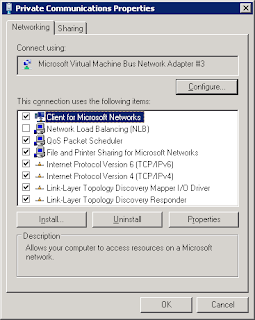
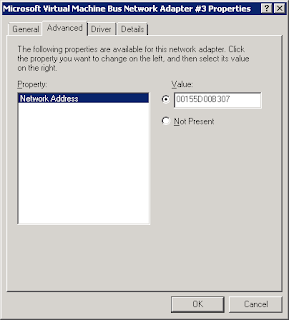
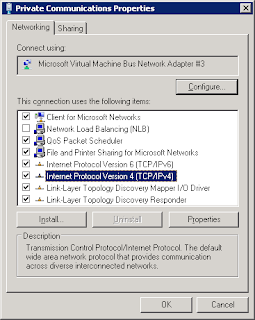
I was trying to create my first Hyper-V VM based NLB cluster and found it is somewhat different from doing the same on either hardware or with Virtual Server 2005. So, I thought I’d share my experience and what worked for me in the hopes that it will help someone else avoid the issues I faced.


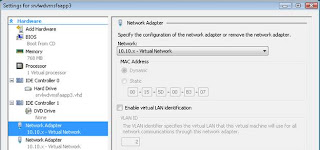
We’ve recently been running into a problem with our virtualization infrastructure that I found a solution to in Microsoft Hyper-V: VLAN Tagging.
For our main virtualization infrastructure, we are using HP C-class Blades with 4 NICs, each connected to a different VLAN. These servers are set up as a cluster and this has significantly limited our abilities to virtualize more servers than we have, due to the limited number of VLANs we can connect the cluster to for the guest VMs.
Enter Hyper-V with the ability to do VLAN tagging at the VM level. Now, I can trunk the four connections together to provide redundancy and additional throughput for my bandwidth hungry VMs, assign them to multiple VLANs, and have the VMs tag the VLAN they belong on. Sounds simple but obviously there is a lot of planning and configuration that goes into this, especially in a clustered & complex environment such as ours.
I will be posting a follow-up post with step-by-step instructions for how to do this on a more basic level, but the fundamentals will apply to more complex scenarios.
This past weekend, I went to SQL Saturday #8 and one of the sessions involved the development and presentation of your "virtual self". In this session, Steve Jones made clear the advantages, both personally & professionally, of having an online presence. Part of Steve's presentation was a great deal about blogs. His speech won my vote and I decided I just had to have one.
So, as my first post, I'd like to introduce myself. My name is Mike Laurencelle and I'm a SharePoint & Server Systems Administrator for Sears Home Improvement Products, headquartered in sunny Longwood, Florida. I've been working for Sears for the last two and a half years. Before Sears, I spent eight years working for Thomas Computer, a nationwide catalog based computer sales & services VAR in Orlando, Florida.
I've been in the IT industry now for 15 years. Most people I tell that to are shocked but I practically grew up in a family of IT pros. For me, IT is more than a job to make a living, more than a career to call my own. It's my passion. I am a self proclaimed geek in all things technology. I can't imagine being in any other field. I love what I do.
For Sears I am a member of the Server Administrators team and my primary functions revolve around SharePoint and Virtualization technologies. Those probably comprise 60-80% of my time, with the rest spread among many other projects that help provide variety. I am part of a phenomenal team with a great bunch of people, working for a company I believe in, doing what I love...how lucky am I? :)
Until next time!
© All Rights Reserved. SharePoint Views
Designed by : CustomBlogDesigner.com
0